A chronicle of issues encountered in SharePoint

Category: Office 365

Import Excel file into an Existing List

SharePoint offers the basic feature of importing a spreadsheet which will then become a brand new list. If any updates are made to the spreadsheet, you will either have to:

  • manually key in the updates to the list -or-
  • copy and paste the updates to the list using the DataSheet View or QuickEdit (depending on your version of SharePoint), -or-
  • delete the list and re-import the spreadsheet, thereby creating a new list every time

Alternatively, there is an add-in for SharePoint Online that allows you to import an Excel or CSV file into an existing SharePoint list.

Click here to go to the product page on the Microsoft App Store and add this cool add-in to your arsenal.

SharePoint Online (Office365) Starter Kit

There is now a “starter kit” available for your Office 365 SharePoint tenant (aka SharePoint Online or “SPO”).

It’s not just a site template but rather, it’s an entire solution featuring Modern page templates (not Classic), 17 custom web parts, 7 SharePoint framework extensions, and several other components – all customizable and ready-to-go.  Plus, it’s open source.

It’s a work-in-progress so check back on the Github site occasionally for updates.

Link -> https://github.com/SharePoint/sp-starter-kit

Enable the Audit Log in Office 365

The Audit Log in Office 365 is disabled, by default, presumably to save disk space.

To enable the audit log in your tenant, in the Office 365 Admin Portal browse to the Security & Compliance Admin Center -> Search & investigation -> Audit log search. Click Start recording user and admin activities then click Turn On.

Or you can use this PowerShell command:

Set-AdminAuditLogConfig -UnifiedAuditLogIngestionEnabled $true

Source: TechNet

Azure AD V2 PowerShell Module Released

For you Office 365 subscribers, as of today, the Azure Active Directory version 2 PowerShell module can be downloaded from the below site which also contains a full list of the cmdlets available.

https://docs.microsoft.com/en-us/powershell/azuread/v2/azureactivedirectory


PowerShell Command Builder for SharePoint

In case you weren’t aware, Microsoft has provided a free, online PowerShell Command Builder utility:

https://www.microsoft.com/resources/TechNet/en-us/Office/media/WindowsPowerShell/WindowsPowerShellCommandBuilder.html

I recommend that you bookmark it and refer to it whenever you need to double-check the commands in your scripts.  You may want to download the Getting Started Guide.

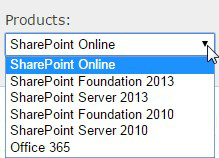
Make sure that the first thing you do is to select the appropriate version of SharePoint from the Products dropdown.

Windows PowerShell Command Builder for SharePoint 2013 Products and Office 365

The rest is pretty straightforward.

Enjoy.

Page 3 of 3

Powered by WordPress & Theme by Anders Norén