A chronicle of issues encountered in SharePoint

Author: Doug Page 6 of 8

Adjust / Modify a Column Width in a List

Today I implemented an Issue Tracking list in SharePoint 2010 for a project.  As the users started using it, I noticed that the Title column was narrow, hence the longer titles were wrapping to several lines.  This does not look good at all.

So I went to Google and set out to modify the column width of my list.  I found this post by someone named Aanu but was disappointed that it didn’t work.  As is often the case, I read further down into the comments and found a gem from a user named George: we needed to add one more parameter to the style information.  Now it works just fine.  Here is the process in one neat, concise explanation.

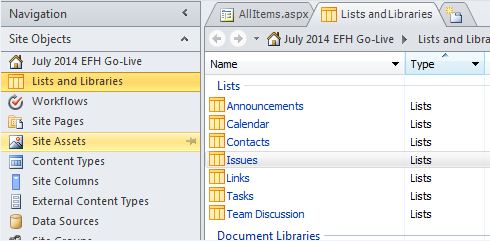
Open the site in SharePoint Designer 2010, then navigate to Lists and Libraries, then select the desired list.  In my case it was Issues.

SharePoint-Designer-2010-Lists-and-Libraries

Select the List, then select the desired view.  In my case it is “All Issues”.  Views are located in the upper right.

Now select the column you want to edit.  Follow Aanu’s post about editing both the <th> and <td> sections by performing these three actions:

  1. Delete nowrap=”nowrap”
  2. Change the width to your desired width.
  3. Add parameters in the “style” code for overflow and white-space.

Now, follow George’s suggestion to perform a fourth action:

4.  Add a parameter for min-width in the style code as well.


Your code should look like the below images.

**Click to open them full-size.**

Modify-list-column-width-in-SharePoint-2010

TH code


Modify-list-column-width-in-SharePoint-2010-td

TD code

Unable to Create a New Document Library or List on a site

Today a site owner wanted to create a document library on his site that had been migrated from MOSS 2007 to SharePoint 2010.  He attempted to create the doc library several ways, none of which worked:

  • Site Actions, New Document Library
  • Site Actions, More Actions
  • Libaries, Create

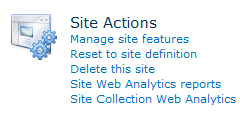
The problem turned out to be a Site Feature that was not activated.  To resolve this issue, I went into Site Actions, Site Settings.  Under Site Actions, select Manage site features.

Manage-site-features

Scroll down to Team Collaboration Lists and activate this feature.


Team-Collaboration-Lists


You should now be able to add Lists and Document Libraries to your site.


Display Name will not Update

I had a user who got married and submitted her name change to the company.  Active Directory was properly updated.  Her old last name (Smith) does not appear anywhere in her AD record and has been replaced with her new last name (Jones).   We have SharePoint 2010 set to perform an AD sync every night.  For some reason, in SharePoint her name continues to show the old last name (Smith).

Attempt to Resolve
We used PowerShell to determine where all she had privileges and it was in only two groups: Member of one group, Visitor in another. So we removed her account in SharePoint via PowerShell.  Then, when I went to manually add her back to the two groups, I used the PeoplePicker to find her.  She was there correctly (Jones).  So I selected her, then Add, only to find her display name incorrectly rendering as Smith.   Since AD is correct it has to be SharePoint caching this somewhere, I reasoned.

Solution
To make this quick, the user at this forum thread had the exact same problem.  After much back and forth, this is the correct solution submitted by one Mayur Joshi:

Let’s do this, hit the below URL 

http://{SiteCollectionURL}/_layouts/people.aspx?MembershipGroupId=0

Look for the user that has old name, select the checkbox, click on Actions -> Delete User From Site Collection. 

Make sure to note the parameter of MembershipGroudId=0.  (That’s a “zero”, by the way.)

Happily, this solution resolved the issue for us.  Thank you Mayur… and Google.

Two Types of SharePoint Developers

There seems to be a fair amount of confusion in the IT world regarding SharePoint Development.  Essentially, the term SharePoint Developer is too vague.

I have conversations with recruiters on a frequent basis who want to discuss the three typical roles of SharePoint Architect, SharePoint Administrator, and SharePoint Developer.  We need to discuss this third role here, that of the SharePoint Developer, because it’s really not so well-defined.

To state it succinctly, there are at least two types of SharePoint Developers.  I use the terms light and heavy.

Role Areas of Skillset
Light Developer HTML, JavaScript, CSS, site branding, InfoPath, SharePoint Designer, Workflows, PowerShell
Heavy Developer Visual Studio, C#, .NET, SQL, custom web parts


It would be helpful if the IT / Staffing / Consulting industries would adopt these distinctions. This would allow for a better understanding of project / business needs as well as the right fit for the resources required to fit those needs.  We need clarity on what we mean when a project calls for a SharePoint developer.

At the very least, this approach allows for defining more precisely what type of resource is needed (very helpful to recruiters) as well as the different hourly rates (very helpful to project managers).

Uploaded files to Document Library show as Checked Out

If you have a document library with required fields, then uploading multiple files at once is going to cause them all to be “checked out” to the person who uploaded them.

As you know, if you upload a single file to a document library with required fields you will be prompted to fill out those fields in a form.  However, if you upload multiple files at once SharePoint will take them all quietly but with a serious catch: it puts them in a “checked out” state.  With no warnings or messages, I have found this to be quite confusing to users.    

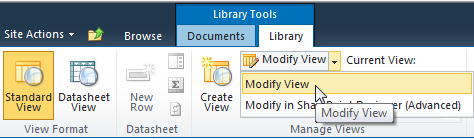
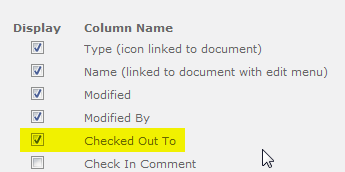
My simple solution is to edit the default list view to display the field “Checked Out To”.  Then users will easily see the files checked out to them and hopefully act to correct it.

First, modify the View.

Modify-view


Then add the column for “Checked Out To” as below.

Checked-out-to
Click OK and you’re all set.


There are several other options:

  • Train users to upload files one at a time and provide required information when prompted
  • Set a default value for each required field in the Libary Settings, Columns
  • Turn off required fields
  • Use a batch check-in software product

SharePoint 101: Restore a Deleted Web Part

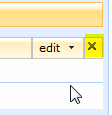
Actually, the title here is misleading.  Let me explain: when a user clicks the X in the upper right corner of a web part (while editing the page) it does not actually delete the web part.  Rather it is “closed”.  There’s actually a big difference between a deleted and a closed web part.

Close_web_part

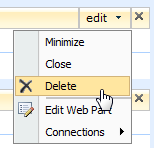
However, if a user selects the web part edit menu and then Delete (as below), then the web part is actually deleted.  You will need to start from scratch or restore the site from backup.

Delete_web_part

If the web part was simply closed rather than deleted, you can restore it, as long as you know where to look.   Simply put, it’s in the Closed Web Parts category.

Here’s how to get your closed web part back:

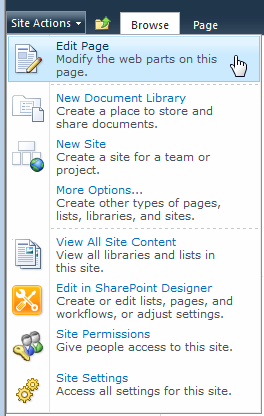
1.  Navigate to the page where the web part was closed.  Edit the page.

Edit_Page_2010

2.  Add a Web Part, preferably where it was previously.

Add_web_part


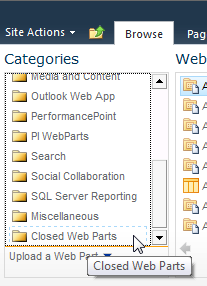
3.  Scroll down the list of Categories to Closed Web Parts.  In my list below it’s the very last selection.

Closed_web_parts

4.  Select the Closed Web Parts category and a list of web parts that have been deleted will appear in the right pane.

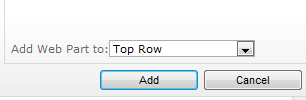
5.  Select the one you want and then click the Add button in the lower right of the web part window.

Add_web_part_button

Your web part should now be restored.

Navigation link missing in Site Settings, Look and Feel

I ran into the problem last week where the Navigation link was missing from Site Actions, Site Settings, Look and Feel.  To resolve this problem: turn on Publishing.

1.  In Site collection features, you’ll want to activate SharePoint Server Publishing Infrastructure.

Site Collection Features

2.  You will also want to turn on Publishing at the site level.  In Manage site features you will want to activate SharePoint Server Publishing.

Site Features - Publishing

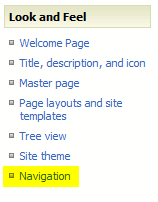
Now your Navigation link will be available.

Site Settings - Navigation link


Addendum: This is a fine approach if you have only a small number of sites where you want to enable publishing.  However, if you have many sites you should use PowerShell.  See this article on TechNet for the script.

List Settings is Missing in Site Permissions

In the previous post, I pointed out that in order to change the view in SharePoint 2010 permissions, you have to go into the List Settings.  You can create or edit the Views there.  However, sometimes the List Settings option is missing.  In this case, the page is there… there’s just not a link for it.  You can get to it but there’s one catch: you need to know the list GUID.  Here is the process to get to the hidden List Settings page.

  1. Determine the list GUID.  To do this, hover over any user’s name in the list of permissions.  You’ll see one of the parameters being passed is the ListID.  This is the GUID for the list.  Right-click the user’s name and select Copy Shortcut.  Open Notepad and paste in the url.  Now simply copy (or cut) everything after &ListId=.  For example, &ListId={3B3CB469-29F0-456D-BF3F-E0D0F1E645F8}&ID=1740
  2. Navigate to the List Edit page with the GUID parameter.  In permissions, you are already in <path>\_layouts\people.aspx?<GroupID>.  Keeping the same path including the _layouts folder, now key in after _layouts\ (replacing people.aspx and everything after) with ListEdit.aspx?&List=<GUID>.  For example, http://sharepoint/_Layouts/listedit.aspx?&List={3B3CB469-29F0-456D-BF3F-E0D0F1E645F8}&ID=174l


Key Points to Consider (Troubleshooting)

  1. You should paste in the GUID from step one rather than type it.
  2. Note that in the original url the parameter was ListId but the ListEdit.aspx page requires the List parameter.  This is an important distinction.
  3. Also notice that you should include the squiggly brackets and the ID parameter at the end as well.


Cannot Modify a View in Permissions: People and Groups

I’ve had a few users reach out to me that they wanted to see additional columns in either of the two views (Detail and List) available to them in Permissions, People and Groups, <PermissionGroup>.

We are used to seeing Modify this View in the View dropdown in document libraries.  (Our client has SharePoint 2010 but retains the 2007 Look and Feel.)

Modify_View

However, in Permissions there isn’t an option to Modify the view.  The two views are simply listed for selection.

Cannot_Modify_View

The answer is to go to the List Settings for this list, and scroll to the bottom of the page.   (The below image shows the 2007 Look and Feel prior to a Visual upgrade.  If you have the 2010 ribbon, List Settings should be on the ribbon.  If not, read on.)

People and Groups - List Settings

There you will find the two Views which you can now select and edit.  Notice that you can Create a view as well.

List Settings - Views

Problem solved, hopefully.  But what if List Settings is missing or disabled?  In that case, see this other post.

Creating a Contact Form Landing Page in SharePoint 2010

In SharePoint 2010, when you create an input form for a list, once the form is submitted, the user is redirected to the list.  Often, you will want to redirect the user to a landing page instead thanking them for their input or perhaps sharing with them something useful that is only to be shared after they submit a form (e.g. insider information, a welcome message, etc.).  To accomplish this is easier than you think: you simply need to append the url.

It would make sense if the parameter you pass through the url were labeled “redirect” but it’s not; the parameter is “source”.  Thus, to redirect a user to a landing page after they submit a form, simply follow this example:  <Path to List>/NewForm.aspx?Source=<Path to Landing page>

Example: http://contoso.com/Lists/<listname>/NewForm.aspx?Source=http://contoso.com/LandingPage.aspx

One caveat, this technique does not allow for using the modal window (aka “lightbox”) feature.  If /when I figure out how to do so, I’ll post it here.

Addendum: A day after posting the above, I discover an issue with the Cancel button.  The Source parameter works the same, regrettably, for both the Submit and the Cancel buttons; meaning, whether a user clicks Submit or Cancel, they are equally redirected to the Thanks page.  I need Cancel to take them elsewhere, preferably back to the previous  page.  I went looking for info on how to resolve this and discovered a great article at SharePointBriefing.com that covers my little, meager find on the Source parameter as well as the JQuery needed to resolve the Cancel issue.  Perfect.

Addendum 2: Salaudeen Rajack also provides an excellent article offering several clever ideas about this issue.

Page 6 of 8

Powered by WordPress & Theme by Anders Norén