A chronicle of issues encountered in SharePoint

Author: Doug Page 7 of 8

Best Practices for SharePoint 2010

I was performing a SharePoint 2010 assessment recently.   Among a great many other things, I went over their Windows Event logs, diagnostic logging, health and usage data collection, and web analytics.

I went to Google looking for best practices in these areas but was not very successful in finding succinct, solid information.  So I’m going to write an article on the matter in the very near future.  In the meantime, I would like to share an article I stumbled across from Microsoft that I found quite helpful in several other areas.

Read it here: SharePoint 2010 Best Practices

SharePoint 2013 Starts to Emerge

Details about SharePoint 2013 (a.k.a. SharePoint 15) are starting to emerge.  Somewhat redundanct articles from ZDnet and RedmondMag discuss some of the highlights that are currently being leaked.  Both reference an enterprising fellow named Bjorn Furuknap who has started a subscription service for publishing SharePoint 2013 rumors.   It looks like both of the articles rely heavily on his findings which, coupled with the caveat that anything can change at any time, means I’m going to take all of this with a grain of salt.  That being said, here is the current state of the rumor mill.

SharePoint 2013 New Features Summary*

  • Expanded social networking capabilities
  • Improved user interface – This is vague and subjective.  With the new Metro user-interface coming for Windows 8, “improved” could mean anything: similar to SharePoint 2010, similar to Metro, somewhere in between, or altogether different?  Improved?
  • Changes in the Client-Side Object Model – Should make branding and site design easier and more robust
  • An App Marketplace – Read More – Similar to Android and iPhone app stores
  • Stronger Information Rights Management (IRM) functionality – Thus, increased document security and governance control out of the box.
  • Education Module / App / Add-on – Read More – Thus, a specific flavor of SharePoint for Educators
  • Expanded functionality for multi-tenancy – Good for hosting providers, so you’ll be able to get SharePoint 2013 “in the cloud” (apart from Office 365) and share server-wide apps and enhancements
  • Increased functionality for mobile devices – SharePoint 2010 offers limited functionality for mobile devices.  Now with more and more mobile devices on the market with demand ever increasing, this is a smart move.
  • Allow for looping workflows in SharePoint Designer – Currently not available except in Visual Studio
  • Authentication via OAuth – Will allow for SharePoint 2013 to easily integrate with Twitter, Facebook, LinkedIn, and other social networking sites

*All, some, or none of these may ever actually materialize

Hide Disabled Ribbon Commands in SharePoint 2010

A client has some of their users in limited permission groups, such as Read Only.  Thus, some of their ribbon commands for this limited group are disabled (“grayed out”).  The client wants for these users to not even see these grayed out ribbon commands both to cut down on the training issues and the complaining.

Tobias Lekman has written an excellent post on his blog about how to hide disabled ribbon commands as well as empty ribbon groups in SharePoint 2010.   To explain this second part, if an entire group of commands is disabled, and therefore not displayed, then you don’t want to display the empty ribbon group section either.  So his solution not only hides disabled commands but also any empty command group sections.

The solution uses some pretty simple CSS and some clever jQuery.  Good stuff.

For the type of person who just wants “the answer to the question” the above will suffice.  However, for the type of person that wants to know the How, Why, What For, and What Else (such as myself) there is a thorough article from Microsoft: Customizing and Extending the SharePoint 2010 Server Ribbon.

Missing PDF icon images in SharePoint 2010

I inherited a SharePoint 2010 environment that had the PDF iFilter installed but was not showing the PDF icon for any of the PDF files.  It took a lot to resolve this issue, which is crazy.  It should’ve been simple.  So I’m writing about my adventures to spare you all from the anguish I faced.  I’ve broken up this message into five sections since it’s long.

1.  The Microsoft KB article does not suffice
2.  SharePoint Sharon’s article has a fatal flaw
3.  Zubair Alexander to the rescue
4.  Double quotes pain
5.  Conclusion

Microsoft KB article
I figured I would just use the Microsoft KB article for installing the PDF iFilter since it also covers setting up the display of the PDF icon.  However, it leaves a lot to be desired.  Namely, the first three bullet points at the end are either vague or inaccurate.   First, I had trouble with “Restart the SharePoint Server Search 14” but another article clued me in on that.  (I have posted the instructions at the end of this article.)  Second, you do not need to reboot the SharePoint servers in the farm for this procedure.  Besides, wouldn’t rebooting the farm thus restart the Search Service thus making Step 1 unnecessary?  Think about it.   And third, there is absolutely no need to create a Test site collection and a document library to see if the PDF icons are working.  It is correct on the fourth item to perform a Full crawl.  That’s one out of four though.  It’s time to blow past this KB article.  <sarcasm>Thanks Microsoft.</sarcasm>

SharePoint Sharon
Going back to my Google results, I found this article which makes several mistakes as well but one stands apart.  First, it gives the correct url to the Adobe website for downloading the icon but then states to download the 17 x 17 icon.  NO!  The good news is that the icon there is 16 x 16, which are the correct dimensions.   Fatal flaw: I copied the code there for the <Mapping> section of the docIcon.xml file but it contains the wrong characters.  (I’ll show you in the double quotes section below.)  It does correctly remind to restart IIS and to perform a Full Crawl but doesn’t mention restarting the Search Service at all.  Simply put, this article doesn’t cut it either.

Zubair to the Rescue
Zubair Alexander offers a very thorough article on this issue.  He offers several registry changes to make/confirm, he explains how to restart the Search service, and he offers several helpful troubleshooting steps.  One minor flaw: he doesn’t provide the link (like the other two articles cited) for getting the 16 x 16 Adobe icon.  He just says in Step 8 to copy it but doesn’t provide for how to get it.  [It’s here, by the way.]  Most importantly, it was his Troubleshooting Step 9 (with the bright red Gotcha! ) that ultimately resolved my problem.

Double-Quotes Pain
I had copied the <Mapping> code directly from SharePoint Sharon’s site.  Upon very close inspection, sure enough, it contained the wrong double-quotes.  Painful.  See below and look very closely.  The double quotes in the section for pdf are different than the quotes in the other sections.

docIcon.xml with INCORRECT double quotes

docIcon.xml with INCORRECT double quotes

So I deleted the double quotes you see above and replaced them with “correct” double quotes and voila – my SharePoint 2010 farm now correctly shows the PDF icon next to PDF documents.  Success!
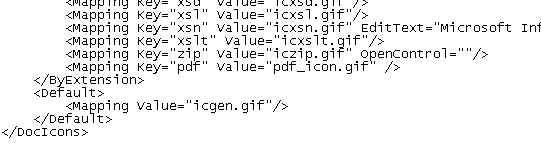
docIcon.xml with the CORRECT double quotes

docIcon.xml with the CORRECT double quotes

Conclusion
The process, therefore, for setting up the Adobe iFilter for 64-bit on SharePoint 2010 is thus:

  1.  Install PDF iFilter 9.0 (64 bit) from http://www.adobe.com/support/downloads/detail.jsp?ftpID=4025
  2. Download the 16 x 16 PDF icon from the Adobe web site http://www.adobe.com/misc/linking.html  or just right-click and Save this one:  pdf_icon   Then, copy it to C:\Program Files\Common Files\Microsoft Shared\Web Server Extensions\14\TEMPLATE\IMAGES\
  3. Add the following entry in docIcon.xml file, which can be found at: C:\Program Files\Common Files\Microsoft Shared\Web Server Extensions\14\TEMPLATE\XML   [You may need to change the name of the .gif in the code below to match your exact file name.]
    <Mapping Key=”pdf” Value=”pdf_icon.gif” />
  4. Add pdf file type to Search.  Go into the Search Service Application, File Types page (found on the left-hand navigation) and add the pdf file type.
  5. Add pdf file type to the registry.  Navigate to the following location in regedit: HKEY_LOCAL_MACHINE\SOFTWARE\Microsoft\Office Server\14.0\Search\Setup\ContentIndexCommon\Filters\Extension
  6. Right-click > Click New > Key to create a new key for .pdf
  7. Add the following GUID for the default value:
    {E8978DA6-047F-4E3D-9C78-CDBE46041603}
  8. Open a command prompt as Administrator.  We need to restart SharePoint search services.   Type the following lines, one at a time:
    net stop osearch14
    net start osearch14
  9. We now need to restart IIS.  In the command prompt window, simply type:
    iisreset
  10. Now, open Central Administration in SharePoint 2010, go to the Search Service Application, and perform a Full Crawl.

The Adobe PDF icon should now appear next to all PDFs.  If they do not, consider going back to Zubair’s site for his troubleshooting steps.  But first of all, make sure you have the correct double quotes in docIcon.xml.  That caused me a lot of grief and I want to make sure no one else struggles with it.

Disable and Hide Social Tags

SharePoint 2010 social tags

I have a client that wanted the social media functionalities to completely disappear from their SharePoint environment.  I found a website that demonstrates how to do this, complete with screenshots, and some very good explanations.  I have nothing to add to their fine work.  Just follow their directions.

Note: their site takes a while to load (at least for me on the several times I’ve visited) so give it some time.

SharePoint Indexing Performance Tuning Tips

David M. Sterling has written an excellent blog entry on tuning indexing performance.  I feel it’s very important and needs to be shared.  [Snippet below.]

There are many factors involved in the SharePoint crawling process that can impact indexing performance. There are also some steps you can take to improve that. Here are the common causes and their resolution:

1.  Indexing Performace is set at reduced
2.  Number of connections
3.  Crawled systems are slow or hosted on remote networks
4. Overlapping crawls
… and seven more.

Click here to to read the full article.

Network Topology Add-In for Visio 2010

Spence Harbar mentioned this topic on his blog briefly but I didn’t fully understand what he was talking about.  I thought it was simply an add-in to Visio 2010 for SharePoint-specific shapes to incorporate into my next SharePoint network topology Visio.  I could always use more cute and helpful shapes in my Shapes menu.   I was wrong.

This add-in enables SharePoint administrators to create and publish dynamically refreshing Visio Services diagrams to monitor the performance of their infrastructure.

Use this add-in to simplify the maintenance and troubleshooting of your Microsoft SharePoint farm infrastructure.  This add-in delivers a near real-time, online view of the status of your SharePoint farm, its servers, and their services using Microsoft Visio 2010 and Visio Services in Microsoft SharePoint Server 2010.

Click here to download the add-in and the corresponding timer job that updates the content.

This is a value-add for us SharePoint administrators to offer both our business leaders and our IT bosses.

Another hidden feature: the user list

After finding the hidden “set up groups” page that was openly available in MOSS 2007, I was reminded of another feature from the past that’s now hidden, but available, in SharePoint 2010: the user list.   In a site collection or site, when you go to look at the Users, you are only given the various user groups to choose from but not a comprehensive list of ALL site users and their respective rights.  But it’s there.  Simply append this url:

…/_catalogs/users/simple.aspx

Note: This list is only visible to and accessible by administrators.

[The above information was gleaned from Tobias Zimmergren’s site.]

Setting up default groups in SharePoint 2010

In MOSS, you could use the “Set up groups” option within a site to create and assign the default Member, Owner, and Visitor groups.

In 2010, the “Set up groups” link does not appear.

The  “Set up Groups for this Site” page is hidden for SharePoint 2010.  You can still get to this page by url:

…/_layouts/permsetup.aspx

[The above was excerpted from this technet article.]

Set up RMS on client side

Once AD RMS is set up on the server, you need to set it up for the end users to actually use the AD RMS functionality.  This is a 2-step process:

1. Install/validate RMS client on client machines
2. Use RMS within Office apps (Word, Excel, PowerPoint, and Outlook)

RMS client on client machines

The AD RMS client comes installed out-of-the-box on Microsoft end-user operating systems Vista, Windows 7, and Windows 8 as well as the server operating systems of Windows Server 2008 and Server 2008 R2.  However, earlier versions of Windows (i.e. Windows XP or Windows Server 2003) require the manual installation of the RMS client.  [Note: the client is actually just one file: msdrm.dll (Microsoft Digital Rights Management -dot – dynamic link library) which can be found in the %windir%/system32 directory.]

If you need to install the AD RMS client manually, first determine the operating system platform, the service pack installed (if any), and the architecture (32-bit or 64-bit) of the machine where you want the client installed, then visit the Microsoft AD RMS client page to download the correct AD RMS client version.

RMS in Office apps on client machines

Once the proper RMS client is installed, you need to set up Office 2010 to use the RMS functionality.  Microsoft has posted a helfpul article called Information Rights Management in Office 2010 that covers the process pretty well.  Essentially, once RMS is set up, users simply need to click File, Info, and then select the restriction settings they want.  Piece of cake.  See below for Word 2010 Professional.

How to use IRM in Office 2010

Additionally, if you would like to add a ribbon command for Protecting documents in Word 2010, it’s a fairly elaborate process, honestly.  Check it out.  Some of your users will prefer this method (the ribbon command) while others will prefer the “standard” way of clicking Info from the File menu.  Either way, you’ll have covered both of your bases.

These instructions work for both Office 2010 and Office 2007 Professional versions, however, RMS will also work with Office 2003 Professional.  For Office 2003 Professional the process is simply to click the File menu, and select Permissions from the dropdown.  Then, simply follow the prompts.  You will be prompted for which users and/or groups are to have access followed by a screen where you select the individual permissions to be restricted.  See below.  Piece of cake.

Protecting Office 2003 Professional with AD RMS


Restrict Office 2003 with RMS


Final

After you have set up the client’s machines for the RMS client and you’ve set up Office 2010 to use RMS functionality, you’ll want to train the users on how to follow the process of protecting their documents, e-mails, spreadsheets, and powerpoints.  At that point, you will have completed the AD RMS mission.

Happy

Page 7 of 8

Powered by WordPress & Theme by Anders Norén